The short version
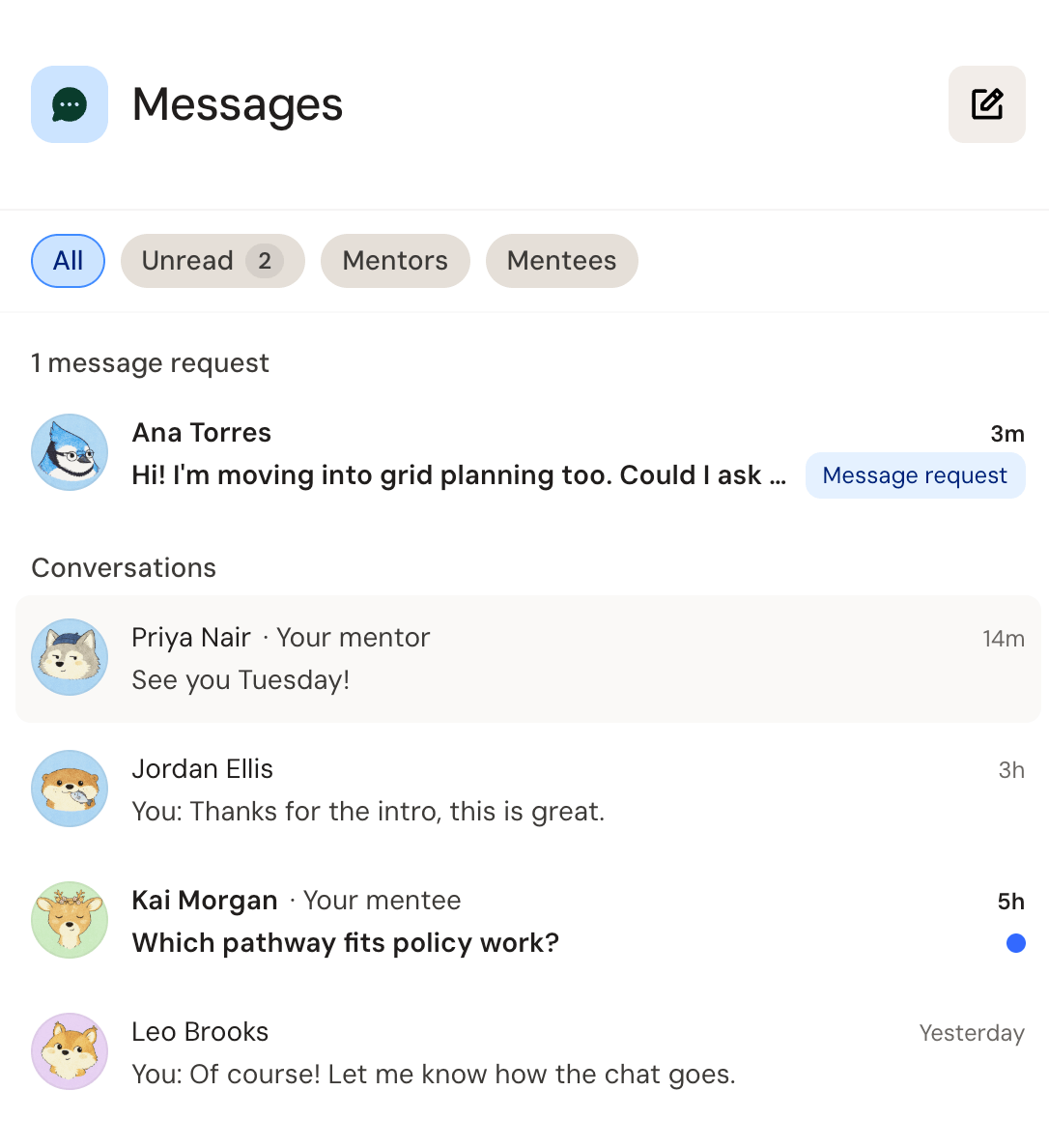
Open Messages from your sidebar. Conversations with your mentors and mentees open on their own once a mentoring request is accepted. To write to another job seeker, open their profile and choose Message. Your first message to someone new arrives as a message request, and the conversation opens once they accept it.
Message requests wait at the top of your list, and your conversations follow, newest first.
Starting a conversation
- Find them. Open their profile and choose Message. Or choose New message in Messages to write to someone you already know: a person you've talked with, or one of your mentors or mentees.
- Write your first message. Say who you are and why you're writing. It arrives as a message request, and they choose Accept, Delete, or Block or report.
- Wait for them to accept. You can't send more until they do. Once they accept, you can both write freely.
To send messages, verify your email first. You can start up to 10 new conversations a day.
Answering a message request
When someone new writes to you, open their message request from the top of your list and choose Accept to start the conversation, Delete to remove it, or Block or report. If you delete it, the sender isn't told.
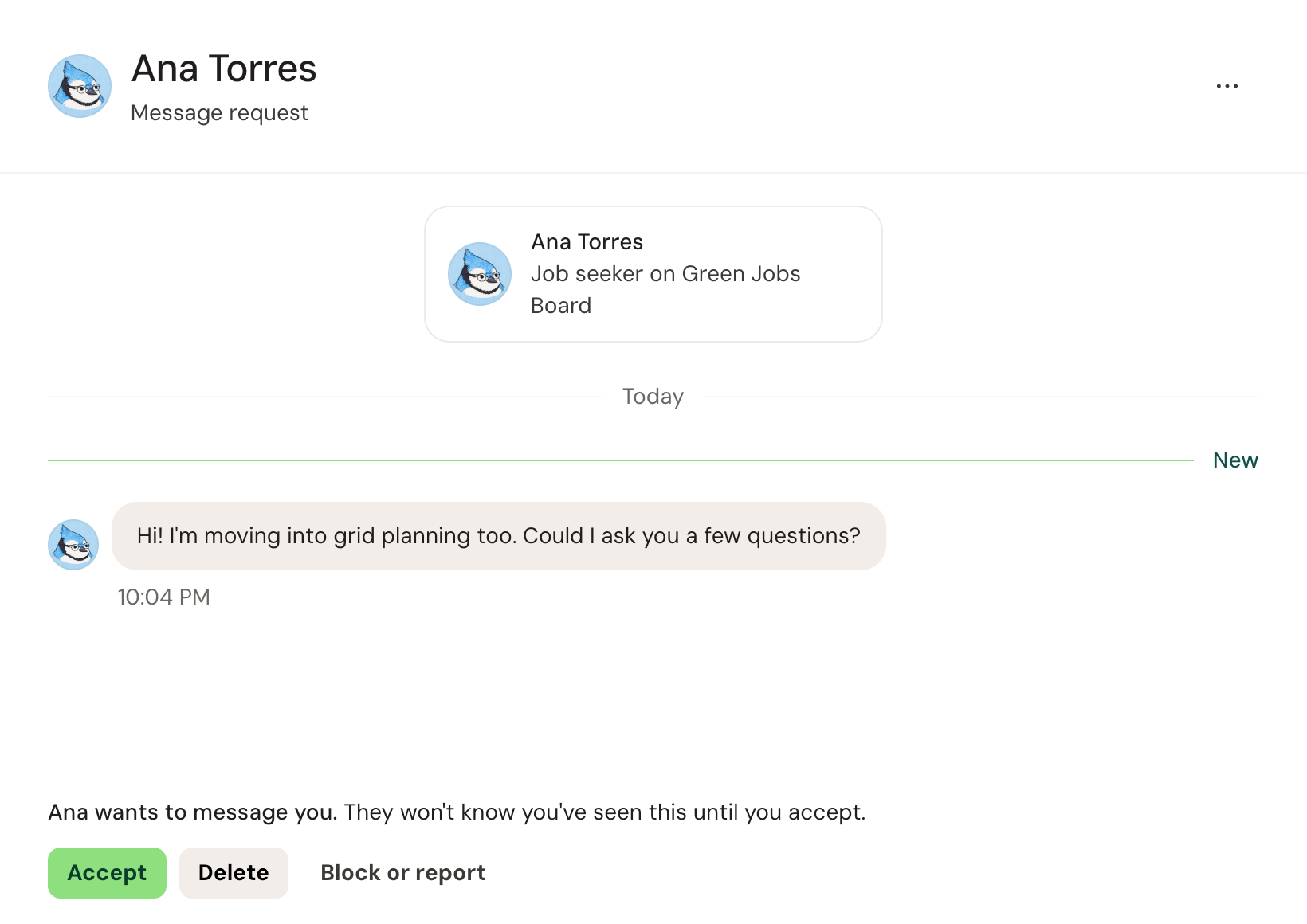
The sender can't tell you've opened a request until you accept it.
Your mentors and mentees
When a mentor accepts your request, your conversation opens in Messages. It starts with your request and their note, and it skips the message request step. Calls your mentor schedules show in the conversation, and so do the follow-ups they send after a call.
A mentoring request that's still waiting shows in Messages too. A mentor can accept or decline it right there, and you can withdraw one you sent. Use the Mentors and Mentees filters at the top of the list to find them fast.
In a conversation
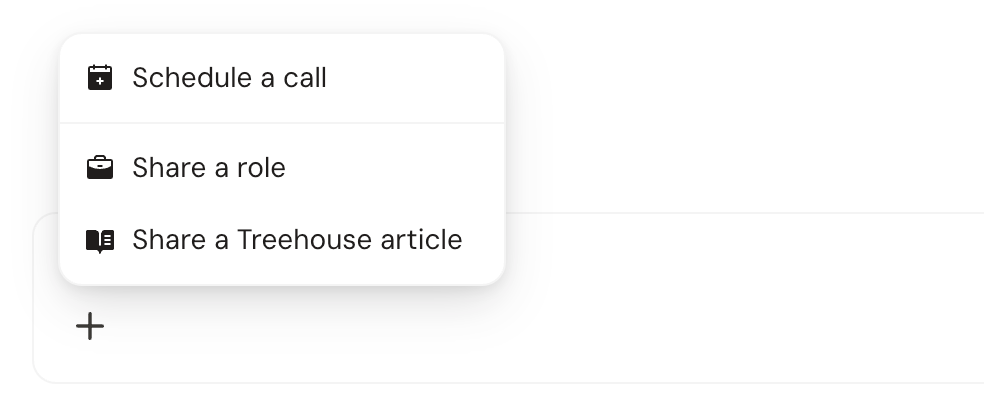
Share a role or a Treehouse article with the + button beside the box where you write. It sends as a card, and if the role closes or the article comes down, the card says it's no longer available. With a mentee, the same button schedules a call.
- Reply, react, edit, or delete. Reply to a specific message, react to one, edit what you sent for 15 minutes after sending it, or delete it. A deleted message shows as "Message deleted."
- Mute a conversation from its menu to stop its notifications. New messages still show when you open Messages.
Staying in control
- Turn off message requests in Sharing settings, under Other job seekers. Conversations you've already accepted carry on.
- Block someone and they can't write to you or see the conversation. You keep it, read-only, and can unblock them anytime.
- Report someone from the conversation's menu, or report one message from its own menu. Our team reviews every report, and reporting someone also blocks them.
Good to know
- Messages is for job seekers. Employers can't see it or write to you here.
- Notifications stay in the app. A new request, an accepted request, and new messages show in your notifications, not by email. You hear about new messages once until you've read them, not for every message.